Lock Coloring Book Pages Before You Regenerate
Lock pages in the Coloring Magic Art editor so Regenerate all and single-page generation skip them. Unlock when you want to edit the prompt or image again.
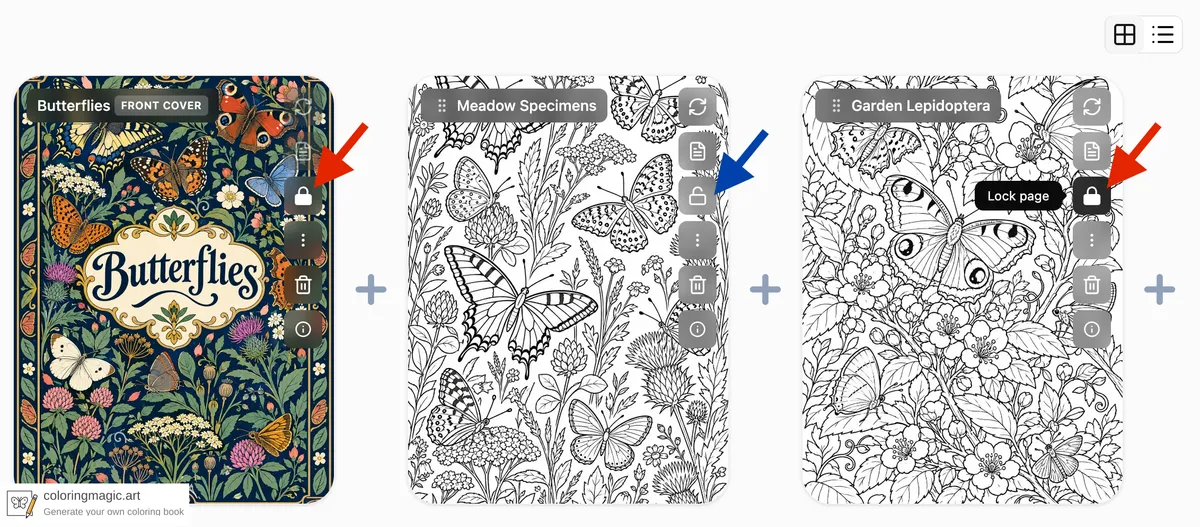
When you refine a coloring book, some pages are done and others still need work. Lock page marks a page as finished. Locked pages are skipped by Regenerate all and by single-page generation until you unlock them.
This guide shows where to lock a page, what you can still do while it is locked, and how Regenerate all treats locked pages.
Where to lock or unlock
- Sign in and open a book in the editor.
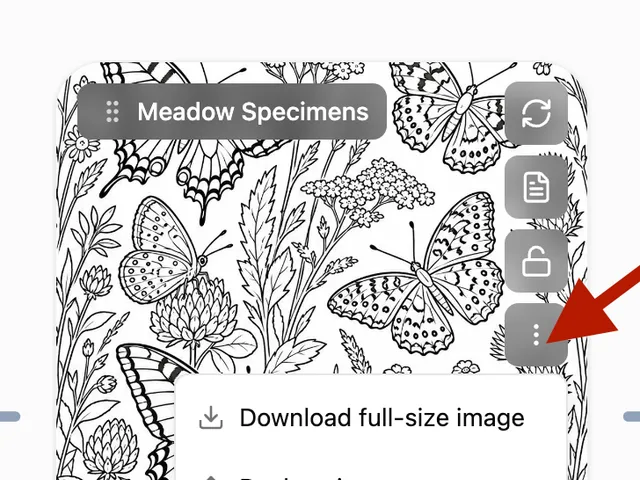
- Open the Page actions menu on the page card.
- Choose Lock page or Unlock page.
A locked page shows a Locked badge on its card.
What Regenerate all does with locked pages
Regenerate all draws a new picture for each coloring page that has a prompt, except:
- Locked pages — they stay as they are
- Uploaded photos — they are not redrawn automatically
- Pages that are already generating
When you confirm Regenerate all, the message shows how many pages will run and how many tokens that costs. Locked pages are left out of that count.
For what each generation costs, see What Costs Tokens (and What Is Free).
What you cannot change while a page is locked
While a page is locked, you cannot change the picture or the words that drive a new drawing:
| Action | Allowed when locked? |
|---|---|
| Regenerate all (this page) | No — page is skipped |
| Generate / Regenerate on this page | No |
| Edit prompt or cover title/palette fields | No |
| Replace the image with an upload | No |
| Make coloring page from an upload on this card | No |
| Add, remove, or reorder page reference images | No |
You can still unlock the page, reorder pages, delete the page, or copy it to another book (see Copy a Coloring Page to Another Book). If a locked page is copied, the new page stays locked.
A practical workflow
- Generate a first pass for the whole book.
- Lock each page you want to keep.
- Edit prompts on the remaining unlocked pages if needed.
- Click Regenerate all to refresh only the unlocked pages.
- Before you export a PDF for print or KDP, lock the pages in your final set so later experiments do not overwrite them.
To raise quality on the whole book without touching locked pages, change quality in Book settings and run Regenerate all again. Only unlocked pages get new images.
Related guides
- What Costs Tokens (and What Is Free)
- Create Your Own Coloring Book
- Copy a Coloring Page to Another Book
Ready to make your own?
Open the editor and adapt the prompt for your next coloring book page.
You might also like
More articles with overlapping topics.