Copy a Coloring Page to Another Book
Copy one coloring page into another book in your library. The original page stays where it was; you get the same picture in the book you chose.
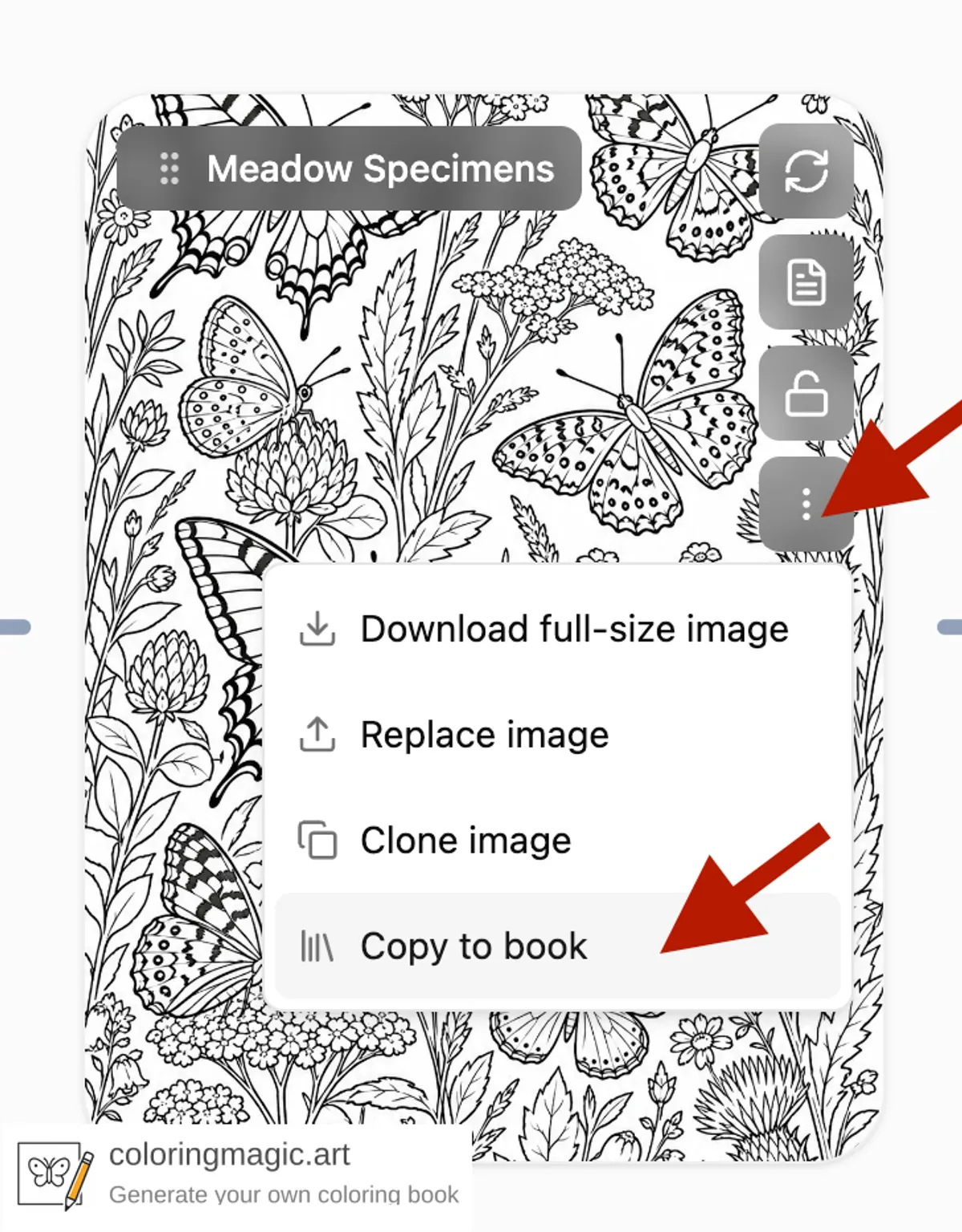
Copy to book adds one page from the book you are editing into a different book in your library. The picture and its prompt come along with it. The original page stays in the first book.
Use it when you try several versions in one book and want the best one in a cleaner final book, or when the same scene should appear in another edition.
How to copy a page
- Sign in and open the book that has the page you want.
- On the page card, open Page actions.
- Choose Copy to book.
- Search for the destination book by name, then confirm Copy page.
When the copy finishes, you can open the destination book from the success message.
What you get in the other book
The new page is added at the end of the book you chose. It includes:
- The same picture
- The prompt you used for that page
- Any reference photos attached to that page (for character or style consistency)
Your saved wizard history for the first book does not move. It stays on the book where you created it.
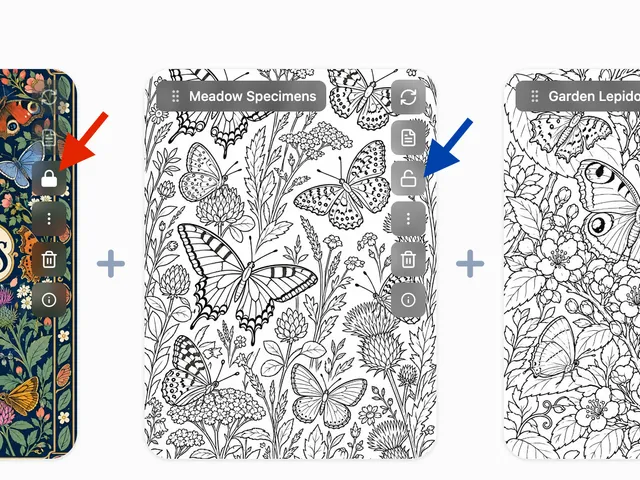
If the page was locked before you copied it, the new page is locked too. Unlock it in the destination book if you want to edit it there.
When layouts do not match
Each book is set to vertical, horizontal, or square pages. If the two books use different shapes and the page already has a picture, Coloring Magic Art may ask you to regenerate that page in the new book so it fits the layout.
Copying the page does not use tokens. Generating or regenerating the picture in the new book does, the same as any other page.
Reference photos
If the page uses reference photos and the destination book already has a matching picture, the app may ask whether to reuse what is already there or add a separate copy. If the book is full on references, remove one in Book settings or reuse an existing match. The dialog walks you through each choice before the copy completes.
When copy is not available
| Situation | What to do |
|---|---|
| You picked the same book | Choose a different book |
| The page is a front or back cover | Covers cannot be copied this way |
| The page is still generating | Wait until the picture is ready |
| The destination book is full | Delete or move a page, or pick another book |
A simple workflow
- Create a book for trying ideas and extra versions.
- Generate a few options of the same scene there.
- Copy to book the page you like best into your final book.
- Lock or delete pages you do not need, then download your PDF.
For a full walkthrough of creating a book, see Create Your Own Coloring Book.
Related guides
- Lock Coloring Book Pages Before You Regenerate
- Create Your Own Coloring Book
- What Costs Tokens (and What Is Free)
Ready to make your own?
Open the editor and adapt the prompt for your next coloring book page.
You might also like
More articles with overlapping topics.