
Keep Characters Consistent Across Coloring Pages
Attach a character sheet as a reference image. Keep the same face and markings on every page while scenes, friends, and outfits change.
When you describe a character in words only, hair, spots, and outfits drift from page to page. That's normal. The model is guessing.
Attach a character sheet as a reference image once, then describe the scene, not the face. The AI looks at that sheet for every page and draws printable coloring-page line art — same cow, same unicorn, new friends or a new clothes set.
This guide uses two real books: a cartoon cow visiting farm friends (ages 2–5) and a unicorn dress-up set (ages 6–9). Same Create with AI wizard from Create Your Own Coloring Book — just with Add reference images turned on.
Starting from a garden photo instead? That's Turn Photos Into Coloring Pages.
If you want a product overview first, read What Coloring Magic Art Can Do. Preview the line quality with our free weekly samples before you spend any tokens.
What reference images do
A book can hold up to 3 reference images (PNG, JPG, or WebP). They apply to every AI page in that book: the first wizard batch, pages you add later, and regenerations.
They do not apply to pages you upload yourself.
Use a character sheet — a clear front-view drawing — when you want the same cartoon character on every page. You can mix a character plus a location photo, but one strong sheet is enough for the examples below.
Other sites often call this character lock and keep it in a separate tool from photo conversion. Here both jobs use the same Reference images field. Your prompt decides what changes.
How to add a character sheet
Step 1 — Open Create with AI
Go to My Books and click Create with AI. The wizard opens on Step 1 of 3 — Configure.
Step 2 — Turn on Add reference images
Flip Add reference images and drop the character sheet. The help text is: Up to 3 photos or character sheets. Used for every AI page in this book.
Step 3 — Describe what should happen
Write the book in plain English. Name the character, then say what they do. Don't redesign the face.
- Four pages of the cartoon cow from the reference visiting her friends on the farm.
- Front-view full-body unicorn from the reference with a replaceable clothes set, several pages.
Set page count, layout, and age range so the linework matches who will color. Pick Low quality for a cheap first pass — the unicorn dress-up book in this article was generated at Low.
Click Draft pages when the description looks right.
Step 4 — Check that prompts mention the subject
On Step 2 of 3 — Prompts, read every page. The drafted text should describe the character in your sheet, not a random still life. Edit freely — prompt drafting doesn't use tokens.
Step 5 — Generate and download the PDF
Click Generate. The editor fills in pages as they finish. When the set looks right, download one print-ready PDF and print at home or at a copy shop.
Need a cover? Add one in the wizard or later — see How to Add Front and Back Covers. The unicorn example below includes a front cover.
After the book exists
Change the sheet any time in Book settings. New AI pages and regenerations use the current set. Jobs already in flight keep the snapshot they started with.
Cow visits friends (ages 2–5)
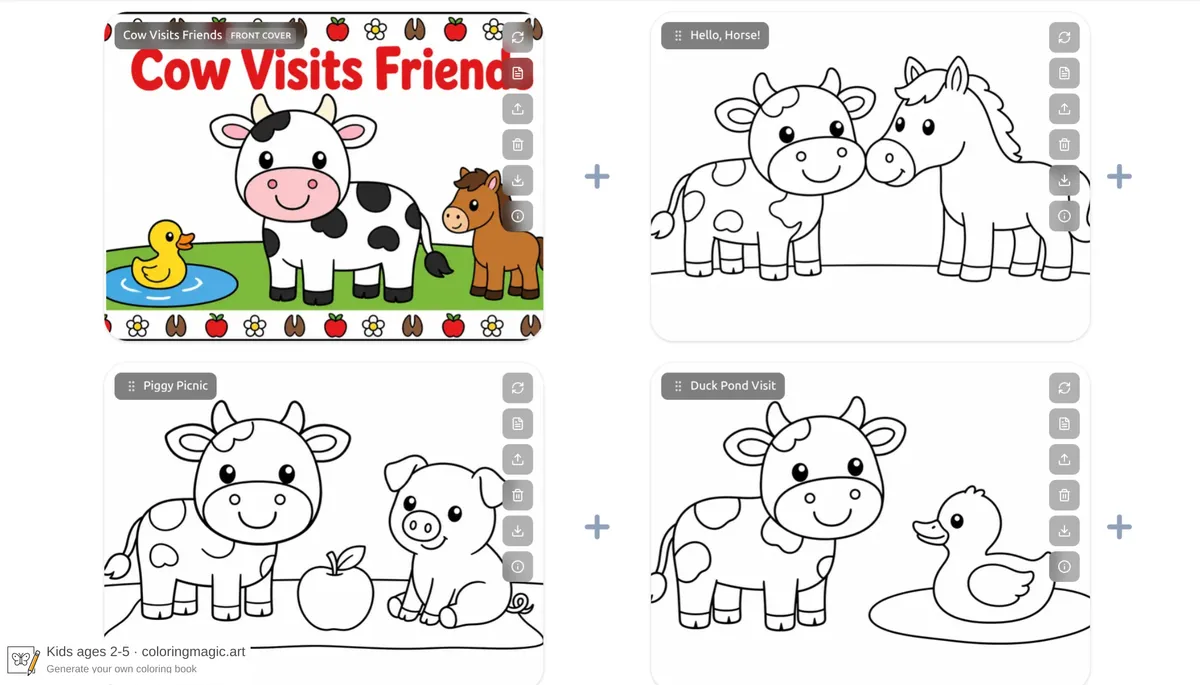
A simple cartoon cow — round face, small horns, spot patches — visits farm friends. Horizontal pages, kids-simple, almost empty backgrounds. Download the sample, or attach your own character sheet and generate a matching set.
Book brief:
The finished book keeps those markings across the cover and the farm visits:
Horse — cow on the left, horse on the right, touching noses. Ground line only.
Pig — cow and pig with one apple on a picnic blanket.
Duck — cow looking at a duck in a small oval pond.
Goat — cow offering one flower.
The reference owns appearance; the prompt owns the action.
Want to make something similar?
We'll open the book wizard with this idea already filled in so you can customize it.
Turn on Add reference images in the wizard and attach your own character sheet (or a clear drawing of the cow) before you generate. The button prefills the description; it can't attach the file for you.
Unicorn dress-up (ages 6–9)
Same idea for a paper-doll book: one unicorn character sheet, then a new clothes set on every page. We need an empty background and items in rows so kids can cut them out. Vertical layout, kids-medium, generated at Low quality. The sample PDF has the cover plus six clothes sets (including winter, sport, and bedtime pages not shown here).
Book brief:
The book also has a colorful front cover with the title Unicorn Dress-Up and a scatter of clothes around the same unicorn.
Casual clothes — T-shirt, shorts, hoodie, sneakers, cap, scarf.
Rainy day — raincoat, rain boots, hat, pants, umbrella, scarf.
Party — jacket, bow tie, dress with a horn opening, crown, shoes, cape, handbag.
More unicorn play ideas: My 5-Year-Old Asked for Cute Unicorns and Cute Coloring Pages for Kids. Match line complexity to age with Age-Matched Coloring Pages for Kids.
Want to make something similar?
We'll open the book wizard with this idea already filled in so you can customize it.
Turn on Add reference images and attach a full-body unicorn sheet (or any character you want to dress) before you generate.
Prompt patterns that work
Copy these and swap the character:
If a drafted prompt invents a new hairstyle or different spots, rewrite it so matching the reference is the look, and the new scene is the only change.
What character sheets work best
- Front view. Extreme profiles make the face harder to lock.
- Full body if later pages need outfits or poses sized to the character.
- Skip sunglasses when the face has to stay recognizable.
- One clear character. Extra subjects in the sheet compete with the one you want repeated.
- A coloring-page or cartoon sheet is right when you already like that line style and want it repeated. A photo of a real person or pet can work too, if it's close and well lit.
You can attach up to three images. For Grok, the first image can influence framing — put your main character first. GPT Image 2 (used in these examples) is less picky about order.
Turning a garden photo into line art instead? See Turn Photos Into Coloring Pages.
Tokens
You still pay for each generated page, at the model and quality you chose. Attached reference images add a per-image surcharge on every generated page (on GPT Image 2, that's a few extra tokens per reference).
Uploading the sheet is free. Drafting and editing prompts is free. PDF download is free.
See What Costs Tokens (and What Is Free) and live rates on Pricing. Draft at Low, then regenerate keepers at Medium or High — that's how the unicorn book stayed cheap to iterate.
Frequently asked questions
How do I keep a character looking the same on every page?
Attach a character sheet (or a clear photo) as a reference image. In the prompt, describe what happens — visiting friends, a new outfit — and say “matching the reference.” Don't rewrite hair, spots, or clothes unless you want them to change.
What character sheets work best?
A well-lit, front-facing drawing with one obvious character. Full body is best if you need outfits later. You don't need a studio shot; a sharp phone photo of a drawing is enough.
Is this a photo filter or real coloring-page line art?
It's generated printable line art: black outlines on white, sized for coloring. Covers may use flat color fills; interior pages stay outline-only.
How many reference images can I attach?
Three per book. One sheet is enough for every example in this article. If two characters share a book, attach both sheets and name which one is doing what.
Do reference images cost extra tokens?
Yes. Each attached reference adds a small surcharge per generated page, on top of the model's page cost. Check the table on Pricing.
Should I upload a photo or a character sheet?
Upload a character sheet when you already have (or generated) a cartoon design you want repeated. Upload a photo when you want a real plant, pet, or place turned into line art — that's Turn Photos Into Coloring Pages. Either works in the same Reference images field.
Where do I add them — wizard or book settings?
Both. Use Add reference images in the wizard for a new book. Use Book settings to change them later. Future AI pages pick up the new set.
What if the character still drifts?
Use a clearer, closer reference. Cut competing extra subjects out of the image if you can. In the prompt, stop describing the face. Regenerate the off page only.
Can I make a paper-doll / dress-up book?
Yes. That's the unicorn example. Say empty background, items in rows, and clothes sized to the character so kids can cut them out.
Try it yourself
Pick a character that must stay recognizable. Attach the sheet, keep the prompt about the scene, and generate a short set before you print a long book.
Remember to turn on Add reference images. The try-it buttons prefill the description; they can't attach the file for you.
For first-book mechanics (quality, PDF, covers), stay with Create Your Own Coloring Book.
You might also like
More articles with overlapping topics.