
Printing Profiles for an Amazon KDP Interior
What each printing profile option changes in an Amazon KDP interior PDF: trim, bleed, margins, blank pages, and image placement.
A printing profile is the recipe for one export PDF. It does not change the drawings in the editor. It sets the sheet size, the margins, the image position, blank pages, and the rest of the export.
Open a finished book. Next to Download, open the menu and choose Printing profiles.
That opens Prepare for printing. Ready-made setups are the predefined formats. Which ones appear depends on the book’s layout: Vertical, Horizontal, or Square. Saved formats are listed under Your setups.
| Layout | KDP setups |
|---|---|
| Vertical | KDP 8×10, KDP 8×10 with bleed, KDP 6×9, KDP 6×9 with bleed, KDP 8.5×11 |
| Horizontal | KDP 8.25×6 landscape |
| Square | KDP 8.5×11, which uses an 8.5×8.5 in sheet |
Home A4 and Etsy US Letter are in the same list. They are for other printers. The rest of this article follows KDP 8×10 with bleed on a vertical book.
A ready-made setup cannot be edited or deleted. Clone profile copies it so the copy can be changed. Delete profile appears on a saved setup and removes that recipe. It does not change a PDF you already downloaded. The name of a saved setup is only a label. Saving is automatic.
Profile and output
Profile name is the label. Destination for this setup is Amazon KDP interior. Page size is the trim: the finished page after the printer cuts the sheet. The hint under the menu says which sizes fit. A vertical book can use portrait and square sizes. A horizontal book can use landscape and square sizes. A square book can use any size in the list. This setup uses 8 × 10 in.
KDP bleed is With bleed or Without bleed. On a setup you can edit, choosing Amazon KDP interior writes the recipe with bleed off. Changing KDP bleed writes it again, with or without bleed. That rewrite sets the bleed, the margins, where the picture sits, the blank pages, and the cover option. Each of those is below. Changing Page size does not reset the margins. A ready-made setup is locked, so clone it before changing these fields.
Page preview
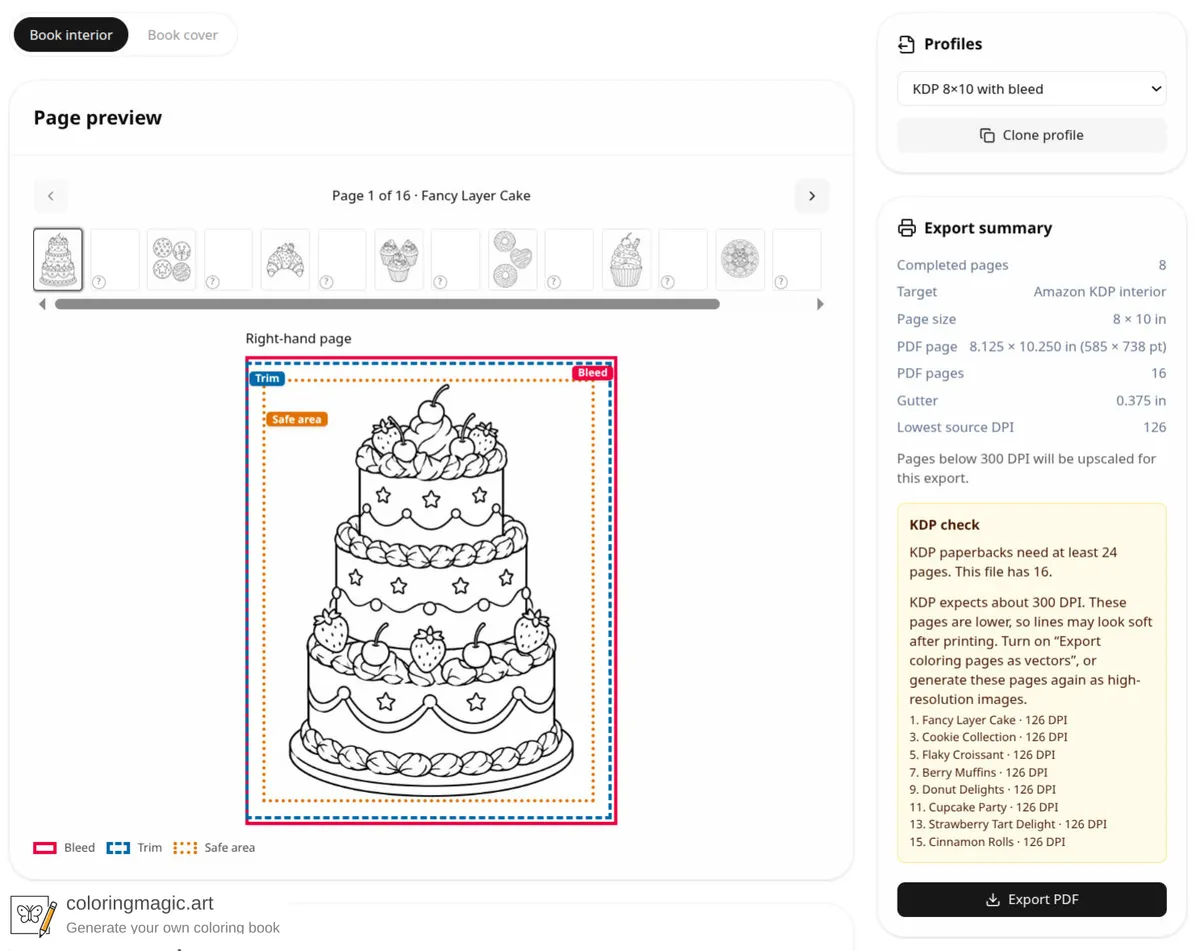
The preview draws three guides.
- Trim is the finished edge.
- Bleed is extra paper outside the trim. The printer cuts it off.
- Safe area sits inside the margins. Keep important lines inside it.
The PDF page is the trim plus the bleed. For this setup the export summary shows 8.125 × 10.250 in (585 × 738 pt). The extra 0.125 in is on the top, bottom, and outside only. On a right-hand page that strip is on the right. On a left-hand page it is on the left. Without bleed, the same trim is an 8 × 10 in page (576 × 720 pt).
Page 1 is a right-hand page. Inside and outside swap on the next page. Facing pages stay on for every KDP export. Those controls are not shown.
The strip is every page in the PDF. This book has 8 coloring pages and a blank page after each, so the preview reads Page 1 of 16. The plain thumbnails between the drawings are the blank pages.
Bleed, safe margins, and placement
Open Bleed, safe margins, and placement to edit the numbers. Bleed and margins are inches. On a KDP profile the inside bleed stays at 0.
Bleed. Top, outside, and bottom. KDP accepts no bleed, or 0.125 in on the top, bottom, and outside. Any other bleed is reported by the KDP check. This setup uses 0.125, 0.125, 0.125, and 0.
Margins. Top, outside, bottom, and inside. They draw the safe area. The inside margin is the gutter, the space that goes into the binding.
For a KDP profile the inside margin is at least this wide. Blank pages count. This guide covers books of up to 300 pages.
| PDF pages | Minimum inside margin |
|---|---|
| 150 or fewer | 0.375 in |
| 151–300 | 0.5 in |
A larger inside margin is kept. A smaller one is raised to this table, so the check does not report the inside edge. The gutter control is not shown. Top, bottom, and outside are not raised. KDP expects at least 0.25 in on those edges with no bleed, and 0.375 in when bleed is on. The check names any of those edges that are short.
This file has 16 pages, so the inside margin is 0.375 in. With bleed, the other three margins are 0.375 in as well. Without bleed they are 0.25 in.
Image fitting controls how the picture meets its box. Coloring pages follow the book’s layout: vertical, horizontal, or square. An 8 × 10 in page is a different shape, so the fit matters.
- Contain. The whole picture stays visible and centered. Empty bands appear where the shapes do not match. This setup uses Contain.
- Cover. The picture fills the box. The parts that do not fit are cropped.
- Stretch. The picture is forced to the box width and height. It can look pulled out of shape.
Scale changes the size of that box. 1 uses the whole safe area, or the whole sheet, depending on Artwork. A smaller number leaves more paper around the picture. A larger number, up to 3, makes it bigger than the box. Anything past the page edge is clipped.
Horizontal offset (%) and Vertical offset (%) slide the picture by that percentage of the box. Positive values move it right and down.
Artwork chooses the box.
- Keep artwork inside the safe area. The picture stays inside the margins. This is the no-bleed setting.
- Extend artwork through the bleed. The picture is fitted to the full sheet, including the bleed. This is the with-bleed setting. With Contain, a drawing that is not the same shape as the sheet still leaves empty bands, so the lines may not reach the cut. Cover and Stretch fill the sheet. Lines that sit in the bleed or the gutter can be cut or bound away.
Page handling
These fields decide which sheets are in the file. On a KDP recipe, a blank page follows each coloring page, the even-page pad is on, and covers are left out.
Empty pages before content and Empty pages after content add that many blank pages at the start and at the end. This setup uses 0 and 0.
Insert a blank page after each coloring page puts a blank sheet after every coloring page. Covers do not get one. The blank page is there so marker and paint are less likely to show through onto the next drawing.
Pad the export to an even number of pages adds one blank page at the end when the count is odd. An even count is left as it is. KDP needs an even count.
The PDF is built in this order: blank pages at the start, then each kept book page (and a blank after each coloring page, when that option is on), then blank pages at the end, then one more blank page if the count is still odd.
Blank pages count toward the page total and the gutter. Eight coloring pages with a blank after each become 16 PDF pages. That count is already even, so the pad adds nothing. Twelve coloring pages with that blank become 24, which is the paperback minimum.
Include front and back covers in this PDF. Leave it off. Amazon takes the interior and the cover as two uploads. The Book cover tab does not build that cover file yet. With the option off, the preview drops the covers.
Export coloring pages as vectors is experimental. It traces each coloring page into SVG, so the lines stay sharp at any print size. The KDP check then drops the low-DPI lines for those pages. Covers and uploaded photos stay as images. The export takes longer.
The same tracing is on the book page. Open the Download menu and choose Download vector PDF (experimental).
The export summary can still show Lowest source DPI and the note that pages below 300 DPI will be upscaled. That note reads the original images. Upscaling does not add detail.
KDP check
The check runs only when the destination is Amazon KDP interior. It does not block Export PDF. It lists what is likely to fail an interior upload. Amazon KDP’s requirements remain the source of truth.
Export summary is the same plan in numbers: completed pages, destination, trim, the PDF page size, the PDF page count, the gutter, and the lowest source DPI.
The screenshot below is that summary with vectors off. This file has 8 completed pages and 16 PDF pages, so the check says a paperback needs at least 24. It also names each coloring page under about 300 DPI. The note points to Export coloring pages as vectors, or to generating those pages again at a higher resolution.
The check can also report:
- No pages in the file.
- An odd page count.
- A front or back cover still in the file.
- Bleed that is neither zero nor 0.125 in on the top, bottom, and outside.
- Top, bottom, or outside under 0.25 in with no bleed, or under 0.375 in with bleed.
- A trim size that is not a KDP size.
- Margins and bleed that leave no room for the picture.
A usable interior
Clone KDP 8×10 with bleed. Leave covers out, keep a blank page after each coloring page, and keep the even-page pad on. Read the KDP check. Export when the page count is even and from 24 to 300. The book in these screenshots has 16 PDF pages, so it is still short of 24.
The same fields build a home or Etsy PDF. Only the KDP destination turns on facing pages, raises the gutter, and runs this check.
You might also like
More articles with overlapping topics.